For speakers who have opted to deliver their talks remotely, we understand that presenting live may not always be possible due to time zone differences, connectivity, or other constraints. If you’re unable to join live, you have the option to pre-record your presentation. This guide provides everything you need to record your talk and submission instructions.
Our goal is to ensure your session is delivered smoothly and professionally, whether live or pre-recorded. If you need any assistance during the process, our team is here to help.
If you choose to pre-record your session, please ensure your final video is uploaded to Google Drive (Or similar)and send the link to download to conference@ivorysql.org no later than June 23 (Beijing Time).
Please note:
The procedures outlined below are based on Windows, but users on other operating systems should find the steps to be similar.
The recording should be made in English and we may add Chinese or other languages as subtitle to your pre-recorded talk.
Download Zoom Application
We will be using ZOOM app to record your talk. It can be downloaded from official download page here
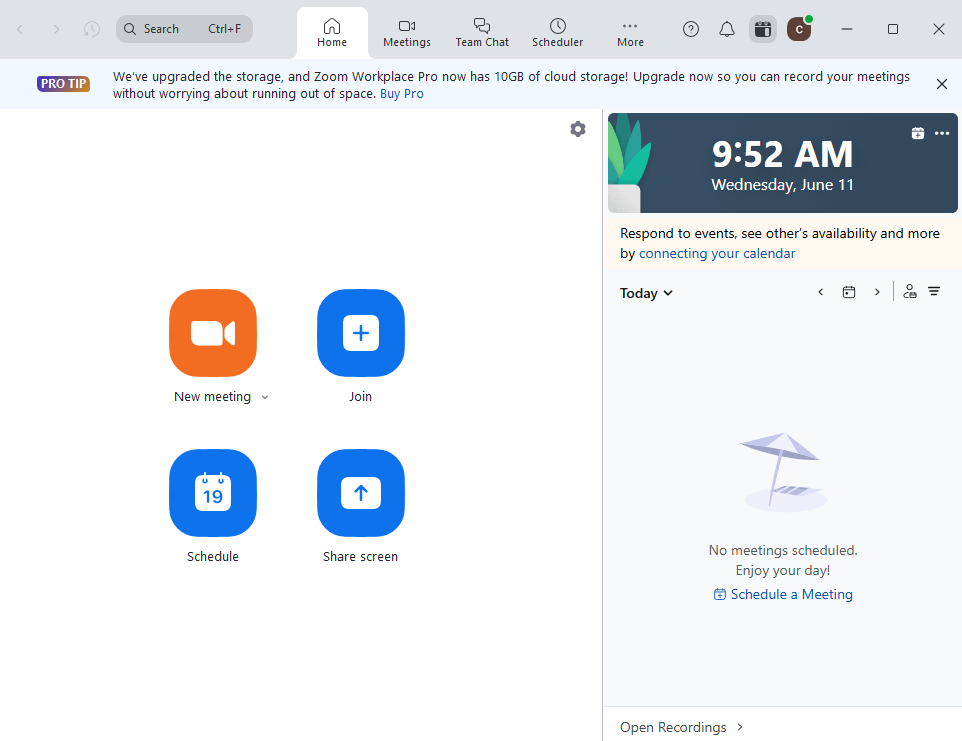
It should look something like this when launched and logged in:
Download Zoom Application
Configure Recording Output
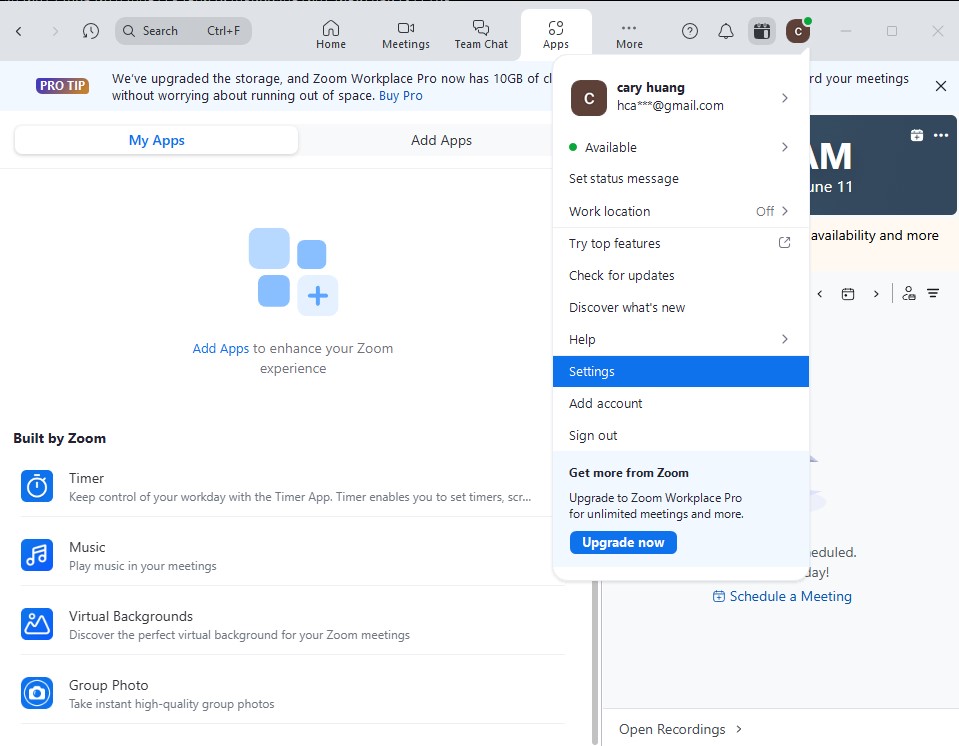
Click on your profile icon on the top right corner and select “settings”.
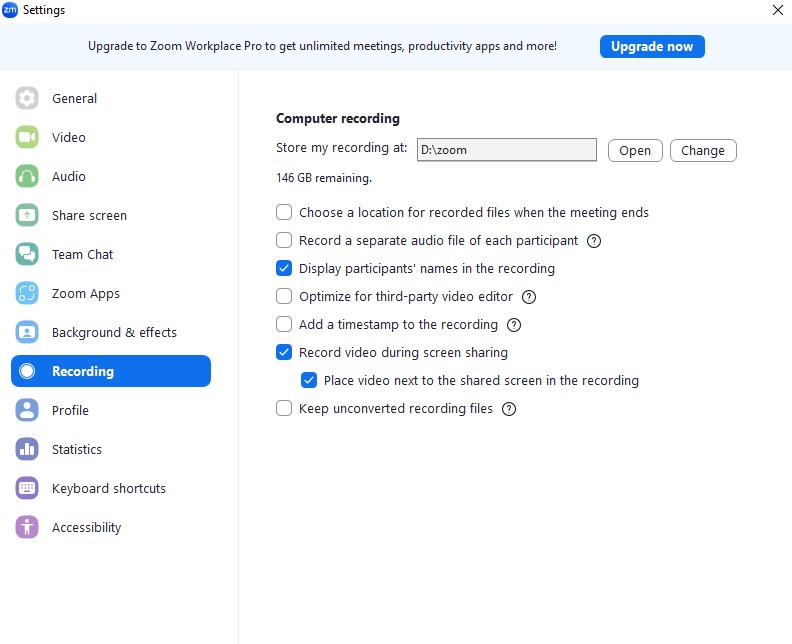
Navigate to “Recording” and set a path to a folder where recording will be exported to. Ensure that the followings are checked:
Display participants’ names in the recording.
Record video during screen sharing.
Place video next to the shared screen in the recording.
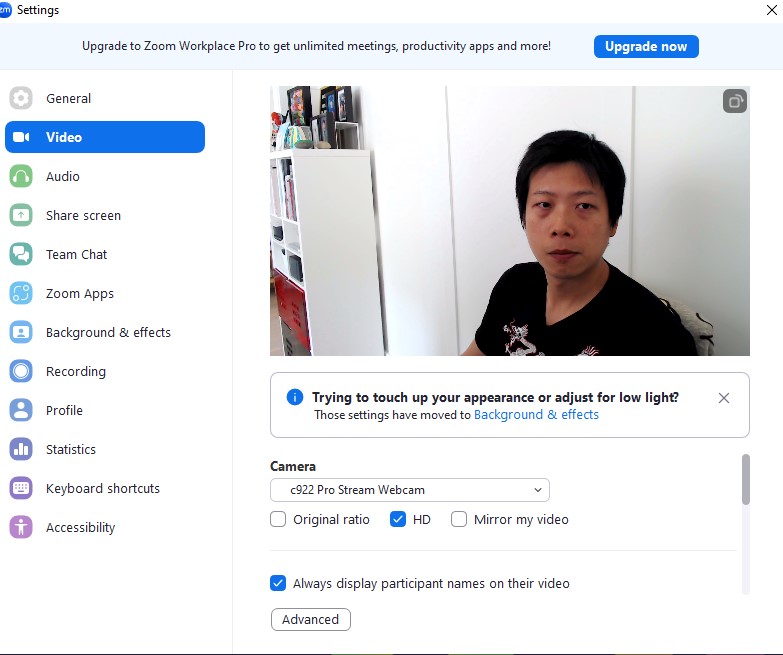
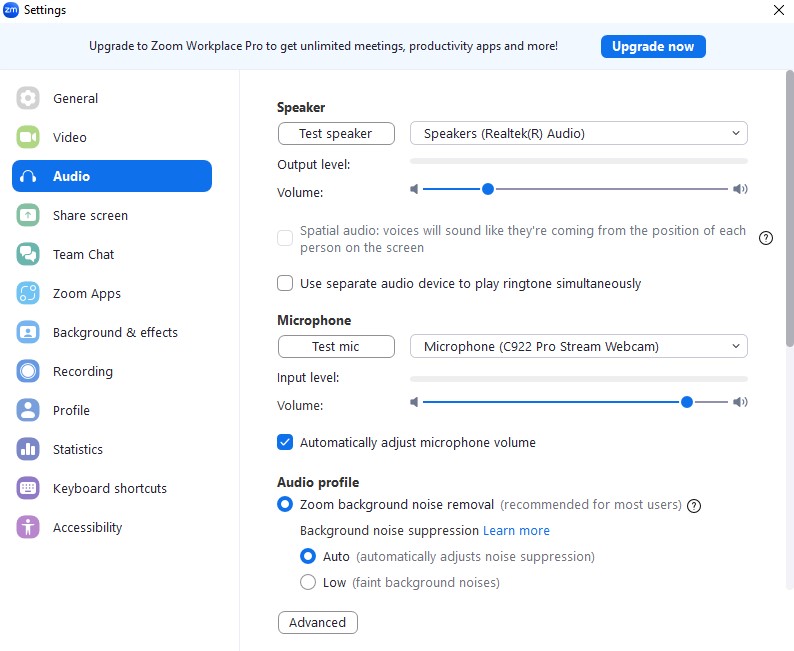
Navigate to “Video” and “Audio” to ensure and test your audio and video devices have been detected by Zoom and working.
Under Video menu, make sure HDis checked under Camera
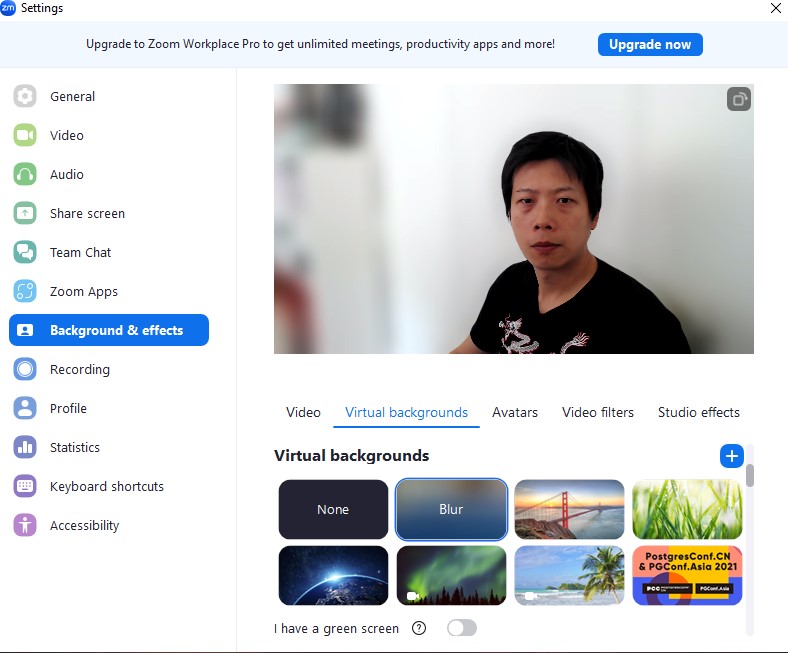
Navigate to “Background & Effects” menu, select “Visual Backgrounds” tab and choose to “Blur” the background.
Launch a New Meeting and Record
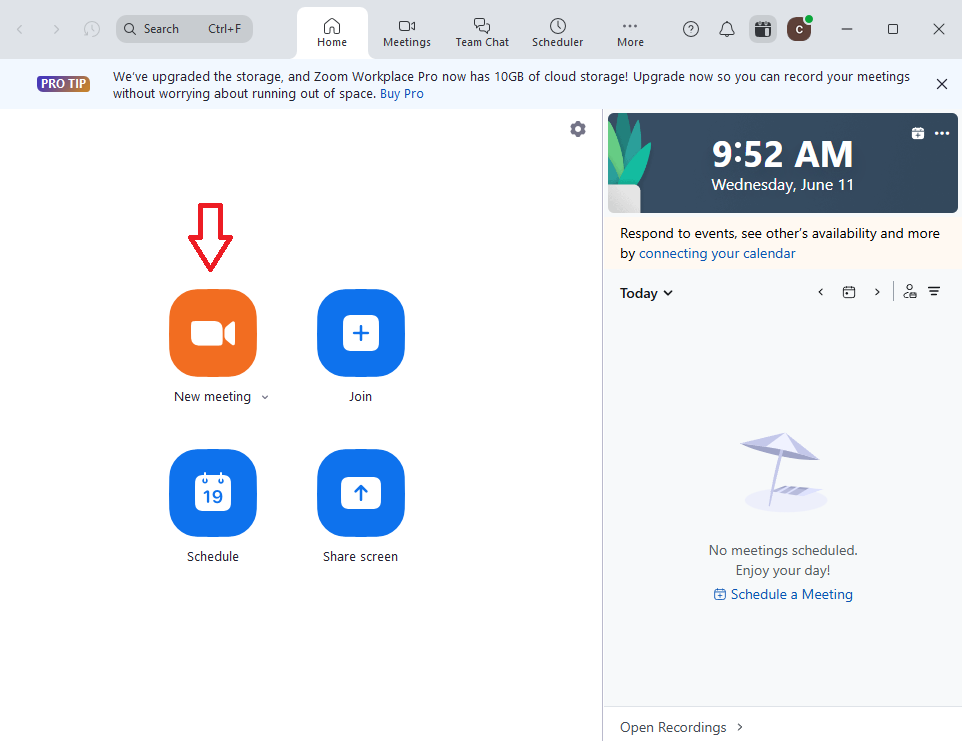
Launch a new meeting by clicking on the big “orange” icon.
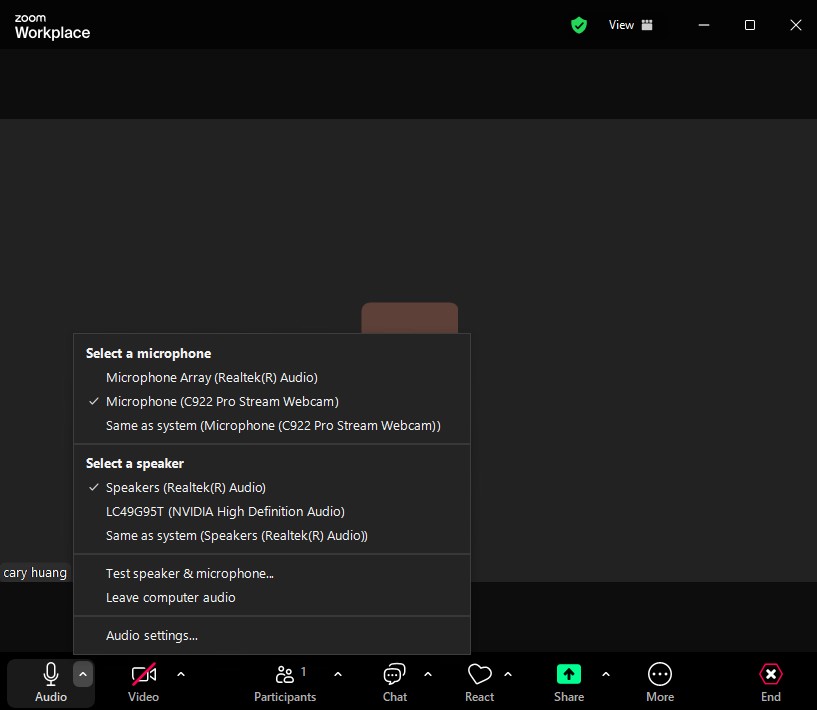
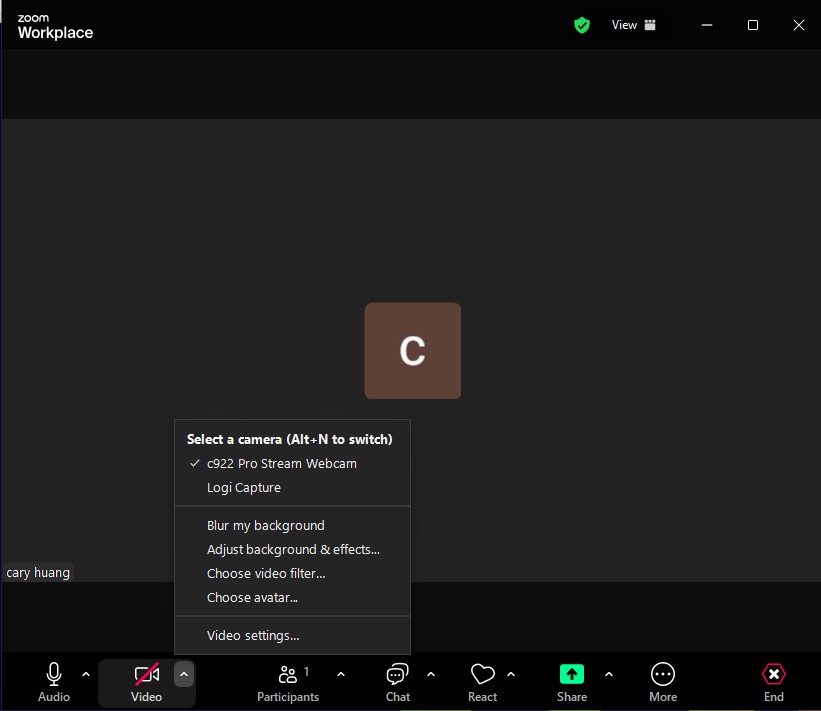
Once a new meeting has been launched, select the proper audio and video inputs devices from the “Audio” and “Video” drop-up menu. They should match the ones in the settings earlier.
Ensure “blur my background” option is selected if you have not set it in the settings.
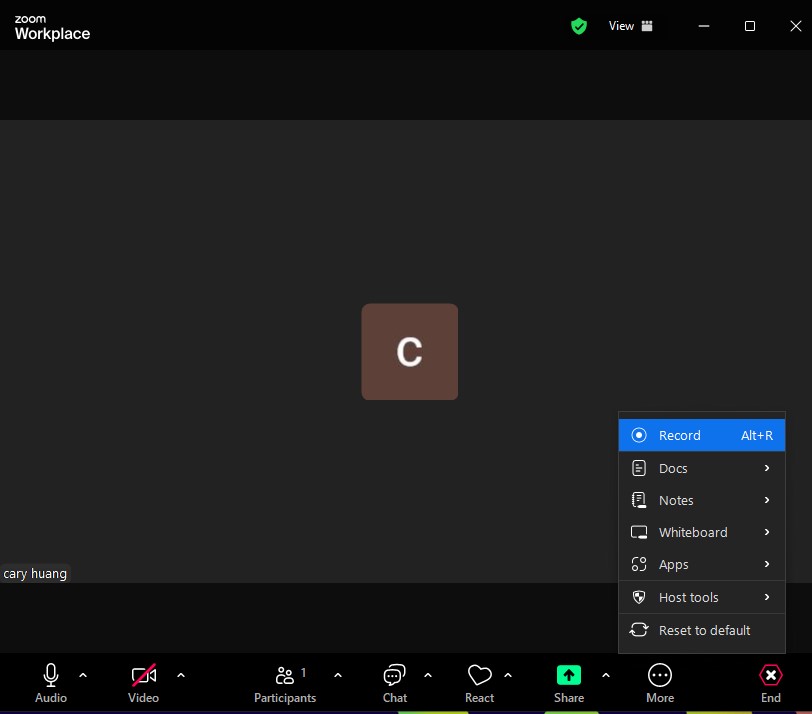
Now, we can start the recording by clicking on “More” -> “Record”.
You should hear Zoom say “Recording in Progress”.
Now, we can start the recording by clicking on “More” -> “Record”.
You should hear Zoom say “Recording in Progress”.
You should ensure the camera and microphone are turned “ON” by clicking on “Video” and “Audio” buttons. (No red line overlays over the icons)
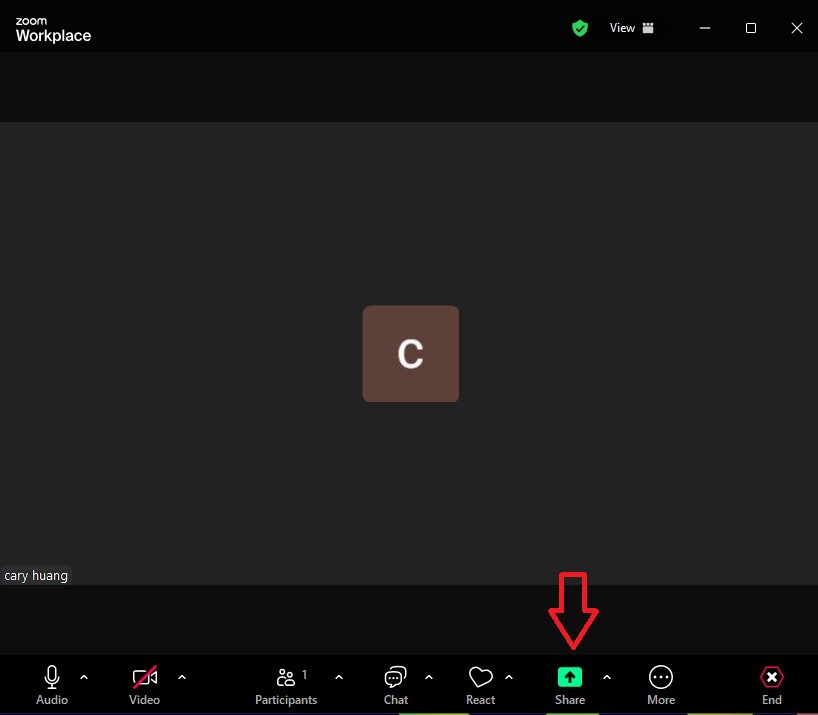
Now, start screen sharing by clicking on the green “Shared” button.
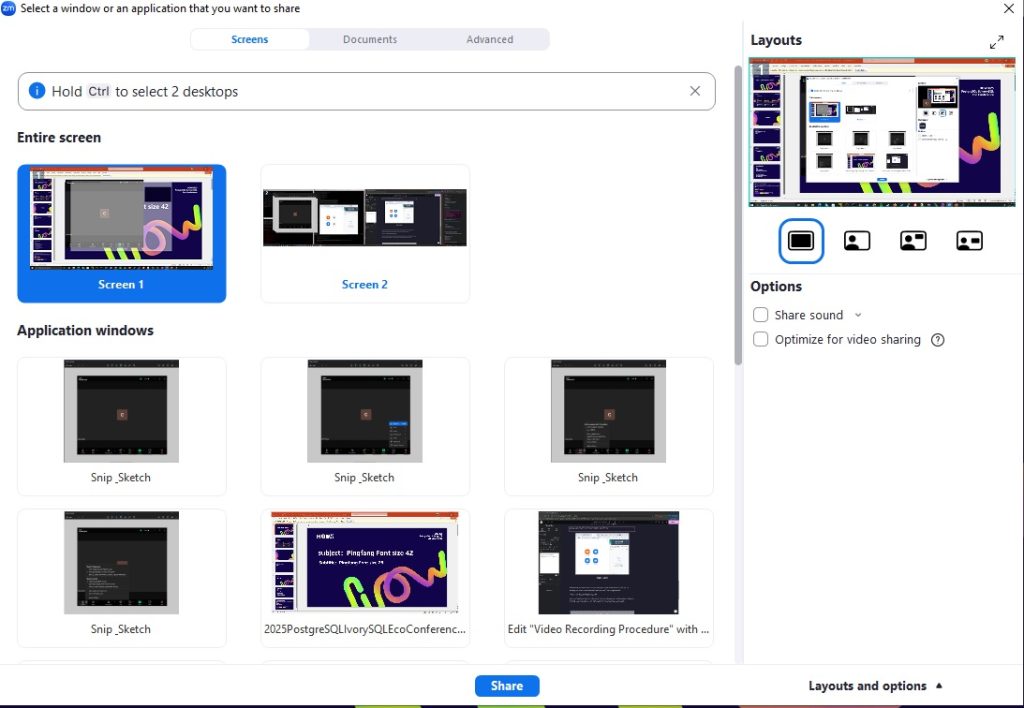
Ensure you choose “Entire screen” and select the right screen where your presentation is on.
You should see both your video and the presentation at this point.
You can place your small video display anywhere on the screen. In the final exported video, it will be automatically placed at a specific location regardless where you put it during the recording.
Now, deliver your talk:
Make sure the duration matches the talk length you have selected.
Make sure you use the HOW2025 ppt template, which can be obtained here
Stop and Export the Recording
Once you finish your talk, click on “Stop share”, say a few closing remarks and then close the ZOOM meeting windows.
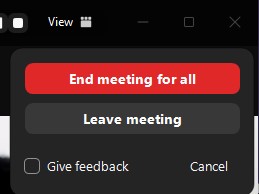
Select “End meeting for all”.
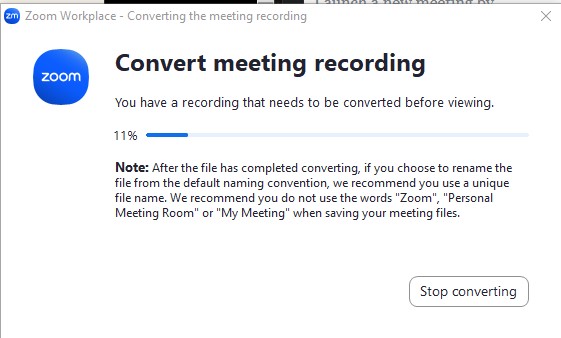
A window will pop up that shows you the status of your video export. It could take a few minutes so please do not interrupt this process..
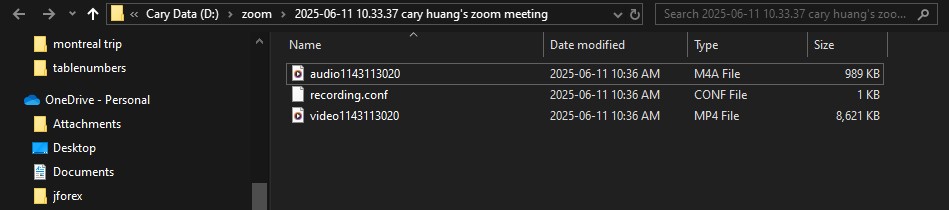
Once the export is done, you can navigate to the video export directory that you have set in the settings. You should find an audio and a video file.
Please send the video file (.MP4) to us at conference@ivorysql.org
This file will be played during your session during the conference.
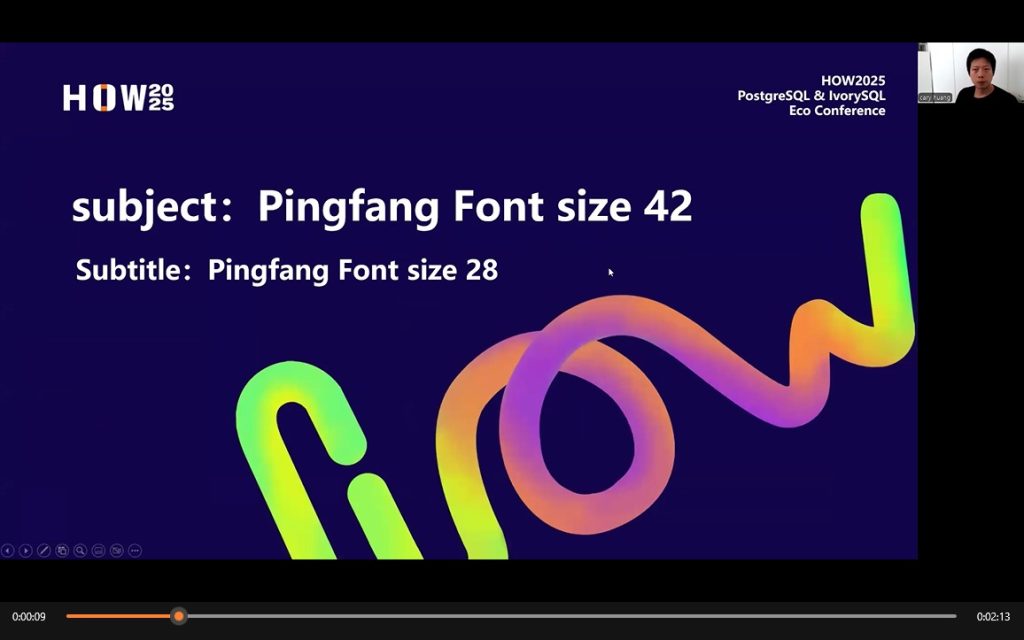
The final recording. Note that the video of you is placed on the top right corner automatically by the export
Need Help?
If you have any questions about the recording procedure, we’re happy to assist!
Let’s work together to create a professional and impactful experience for all attendees. Thank you for being a part of HOW2025 — we can’t wait to see your presentations come to life!